Showing posts with label Lightroom. Show all posts

Thursday, October 22, 2015

Adobe Lightroom Tip – Correcting Multiple Images


This is just a simple tip for those of you editing in Lightroom and want to correct a series of photos at one time, but there is a slight variation in exposures. This often happens when your camera is in some form of auto exposure mode like Aperture or Shutter priority mode.
  1. Select All images in series
  2. Make all corrections you need to do in one photo
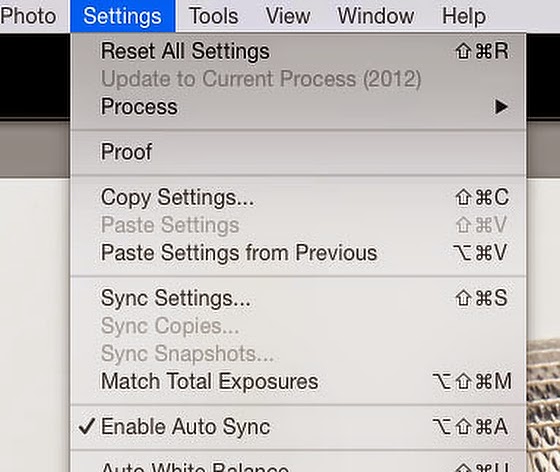
  3. Go to Settings>Match Total Exposures
Once you do this then if say you had bracketed the exposures -1 EV to +3 EV Lightroom will make all of them equal as best that it can. 

After I do this I just quickly click through the images and 99% of the time it is dead on. 

Monday, February 02, 2015

"Match Total Exposures" saves time in Lightroom


Use "Match Total Exposures" to save some time in Lightroom.

If you have a similar scene you can select many images as I have shown here:


Then make all the corrections to the first photo like you would do in all your "Auto Sync" situations and then go to the Settings in Develop module and choose "Match Total Exposures."

This lets you quickly adjust the exposure of multiple photos to match a target photo. Now you can go back and just select images also and select them and choose your "target" photo and then apply the "Match Total Exposures" and you will save a lot of time that you used to adjust exposures.

Tuesday, September 23, 2014

Peak Action + Exposure/Focus + Post Processing = Great Football Action Photo

Nikon D4,  Sigma 120-300mm f/2.8 DG OS HSM, Sigma 2x EX DG APO Autofocus Teleconverter, ISO 1100, ƒ/5.6, 1/2000
If Ansel Adams shot football games the way many photographers do he would have never become famous.

Ansel Adams is not a great photographer because he was able to capture a great moment and compose it in a compelling way. He is a great photographer because he went beyond just the capture and spent literally months trying to process and print images just right.

Today's cameras help you capture the zone system with little skill required by the photographer. This is the problem today. Too many photographers shoot football games for example and just crop the photograph and then publish the photo.

Same photo as above but this is with no post processing other than slight crop.
Post Processing is Key

You can see the difference between the photo above that I took into Adobe Lightroom and worked on to give me the results above, verses the same Nikon RAW NEF file exported from PhotoMechanic to a JPEG after a slight crop.

Here is another example for you to see the comparison.

Nikon D4,  Sigma 120-300mm f/2.8 DG OS HSM, Sigma 2x EX DG APO Autofocus Teleconverter, ISO 500, ƒ/5.6, 1/2000

No processing other than slight crop
Comparing the Histogram on top photo

Before
After
You are not trying to get a perfect bell curve histogram. You are trying to be sure that in the top histogram you can see a lot of information on the far right. This is the details being blown out. Recovering this by sliding your highlights to the left to recover that information.


These are just the adjustments I did for the top photo. Notice with the middle of the day light the inside of the helmets tends to go black from the shadows and the highlights are blown out. I am trying to open up the shadows and recover the highlights.


Here you can see the area that I then dodged in the photo to be sure you could see the player's face. Here are the actual slider settings for the dodge here:


RAW vs JPEG

I understand that shooting RAW takes more space and more time to process than just shooting a JPEG and using that image. I hope I have established this is not the way to make your work stand out.

With the RAW image you have all the information that landed on the CMOS chip of the Nikon D4. I have more dynamic range in this file than can be seen by my computer monitor.

With a JPEG the camera's computer makes some assumptions and then tosses out some of that information to save on space for your image file size.

Couple of things that if you shoot JPEGs for daytime football that will become difficult for you to correct later in post processing.

First of all if your white balance is not just perfect and you want to correct it later the nuances of color shifting this to what is possible is no longer there. You have tossed out some of that information.

Second all the information in those blown out highlights is no longer there. Your ability to add folds back into those white jerseys for example will not be possible.

Third the amount of information in those shadows is also lost. The camera software assumed you wanted those areas black and therefore you have less information there to open up those shadows.

Nikon D4,  Sigma 120-300mm f/2.8 DG OS HSM, Sigma 2x EX DG APO Autofocus Teleconverter, ISO 900, ƒ/5.6, 1/2000
Which photo do you prefer? This one just above or the one just below?


When it comes to evaluating the two photos there is one thing that I look for in sports photos that is hard to see in the second unprocessed image—expression. I believe your sports photos are better when you can show the expressions of the athletes you help communicate the effort and competition of the peak action.

Notice the highlights that are blown out in the lower photo and how many of the shadows are just too dark.

Post processing matters with your photos. Do more than just crop your photos and add captions and you will stand out from the pack.

Friday, April 11, 2014

Fixing the horizon using Adobe Lightroom


Do your horizons look like this? Mine do when I am shooting from a moving boat.  But look at this second photo here.


Does this look better to you?  I thought so. Can you believe it is the same photo?

I fixed it in Adobe Lightroom.

Here is how you do it in just a second or two.


While you are in the Develop Module click on the letter "R" and you will be taken to the crop mode.

Next just hold the "Command" key and you will see a level pop up.


Just place this to the left or right along the horizon and hold down the mouse key until you go to the far right putting a line across the horizon and let go. Now the software straightens the horizon.

You can also go vertical and get the same results.


I had a lot of photos of a lighthouse near Tybee Island to correct today. This made it so easy and quick to fix the photos.


By the way the reason I was out photographing a lighthouse from a boat was to see the Dolphins and we did.


Friday, May 03, 2013

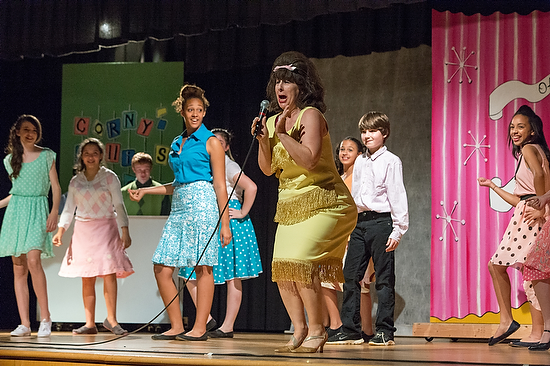
Photographing school plays

Nikon D4, 70-200mm, ISO 11,400, ƒ/5, 1/500
Be Prepared

Here are a few tips to do before you actually start shooting the performance.
  • Arrive Early—You need to have some time prior to the curtain going up.
  • Fast lens and/or high ISO—You need to have the gear that will let you take photos is low light. 
  • Find a good seat—You might think the front row is the best seat, but sometimes the back row is the best. If it is assigned seating, you might want to go before you buy a ticket to the venue. In general I find the seats in the center to give your more opportunities than from the side.
  • Test Shots—Often you can make some test shots to get your exposure correctly set.
  • White Balance—Shooting on Auto White Balance for a theater production is the worst possible time to use this setting. Often the productions use colored lights and this can have your camera correcting which will give your actors funny skin tones. Custom white balance is ideal and second you can try some presets like tungsten to get you close.
White Balance

Having good skin tones is the number one thing that really separates the hobbyist photos from the pros.

My secret weapon is the ExpoDisc. Call my friend Jody Grober at Roberts Imaging 1-800-726-5544 and tell him I sent you. I buy most all my gear from Jody.
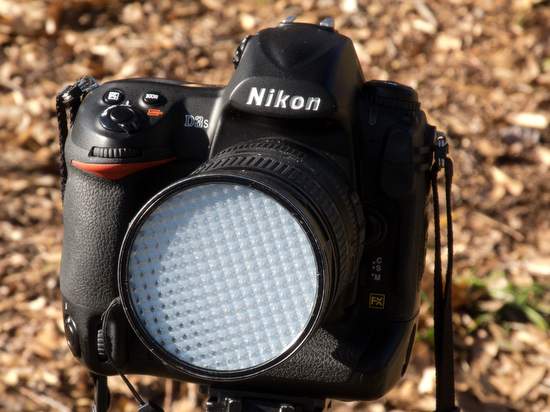

ExposDisc goes in front of the lens and then you use it to get an incident reading rather than a reflective reading of the light.

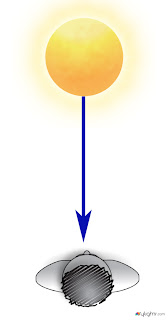
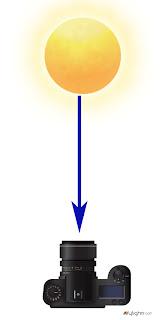
Notice the direction of the light hitting the subject.  You move to the same position to get the light reading below.

Point the camera toward the direction of the light that is falling on the subject. 
I have found if the subject is facing me and the light is from the side, I face the camera with the ExpoDisc on it so it is pointing towards the camera position.  The chart above is to help you understand the concept, but you can modify it.

One way you can modify it is as long as the light is the same where you are standing, then you could cheat and take a reading from where you are.  The problem that can arise is if they are lit by Window light and the camera position is in the shade then your color balance will be off if you do not take it from the subject's perspective.
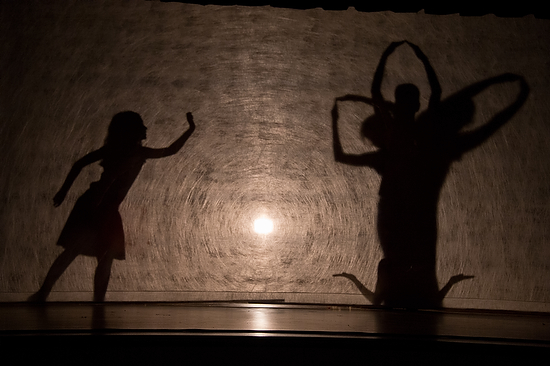

Nikon D4, 28-300mm, ISO 3,600, ƒ/5.6, 1/400
If it is suppose to be a silhouette and you get a photo like mine, then great. However, if you are suppose to see their faces then you need to make some adjustments.
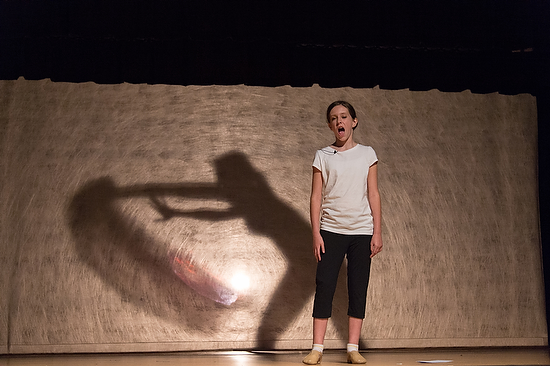

Nikon D4, 28-300mm, ISO 4,500, ƒ/5.6, 1/320
There are a few ways to adjust to get a good exposure on the skin tones. First use spot metering if you camera has it. On the Nikon D4 I can choose selective focus and spot metering. I then have 51 different points I can move the focus/spot metering to take the photo.
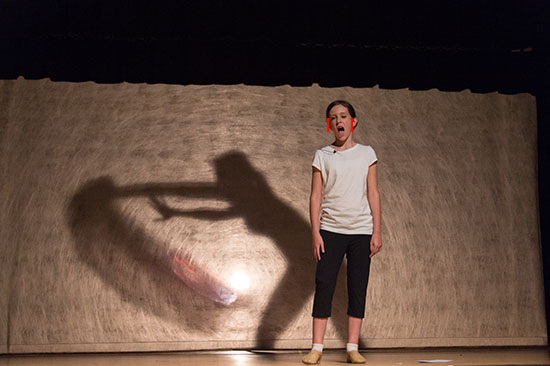

Using spot metering and selective focus with the Nikon D4 I have red brackets I move to where I want the focus and exposure to be set by.
Nikon D4, 28-300mm, ISO 12,800, ƒ/5.6, 1/320
Waiting for the light


While you are waiting for the peak moments in the scene, you also have to wait for the best light. For example this witch's hat had her face in the shadows most of the time she was on stage., but when she was singing those dramatic high notes she put her head up and eureka you have your shot.


Post Production is critical
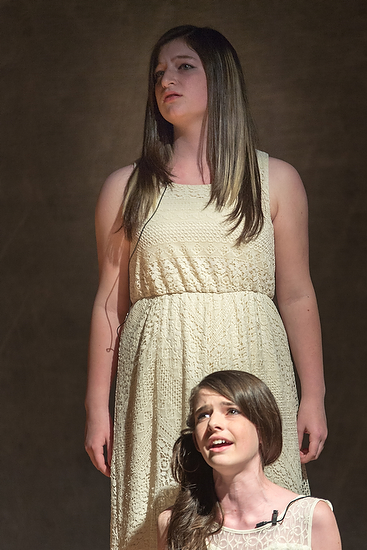

Nikon D4, 70-200mm, ISO 1,2500, ƒ/2.8, 1/500
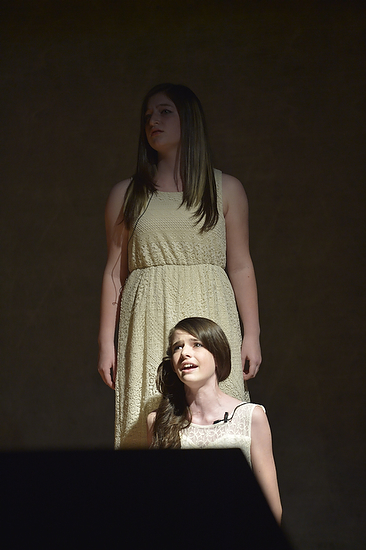
No Flash—That is the rule for stage performances and therefore you are at the mercy of what stage lighting you see. Unless your small town has some incredible endowment for the arts, your lighting on the stage will not look like Broadway or TV shows.  Throughout this production the light value on one person would look great and the other person was blown out or silhouetted. 

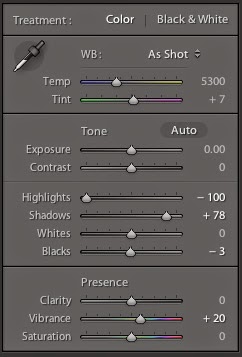
This is where taking the photo into either Adobe Lightroom or PhotoShop can help salvage a photo. This is one of the rare moments I am having to fix photos in post production. It isn't because I screwed up, it is because the lighting just isn't even or at least acceptable for photos.


This is the photo before I cropped it or made changes in post production. Notice that the kneeling actress is well exposed and not blown out. As a general rule you can open up the shadows, but do very little with something that is blown out with no detail.


Nikon D4, Sigma 120-300mm ƒ/2.8, ISO 2,500, ƒ/2.8, 1/500


Get Close


Don't shoot the full stage all the time. Vary your images by using really long glass, like a 300mm lens or longer to isolate an actor. The lighting guys do this will spot light to make you look at just one place, but you can do it with lens choice.
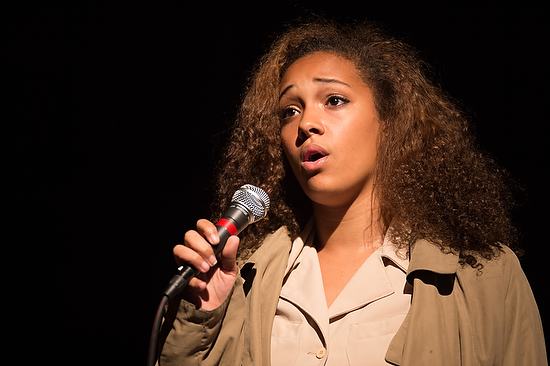

Nikon D4, Sigma 120-300mm ƒ/2.8, ISO 2,800, ƒ/2.8, 1/500
Think Marching 


Nikon D4, 28-300mm, ISO 7,200, ƒ/5.6, 1/250
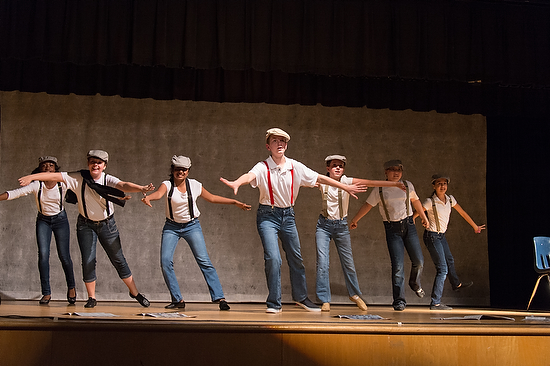
When you see the military marching in formation or see marching bands the photos look great with everyone in sync together.  I usually find that when everyone is in full stride looks better because it creates motion. Closer the legs are together they look like they are standing still, even tho they are moving.


Nikon D4, 28-300mm, ISO 4,000, ƒ/5.6, 1/250
Summarizing


Arrive early, shoot a lot of photos and plan on doing some post production to get quality like I am getting here. You camera phone will not get this quality. Nor will having great gear. What gets this quality is experience. So arrive early to do test shots so you are not shooting your first images of the play when it is live.

Tuesday, July 03, 2012

Perspective Correction in Lightroom 4.1

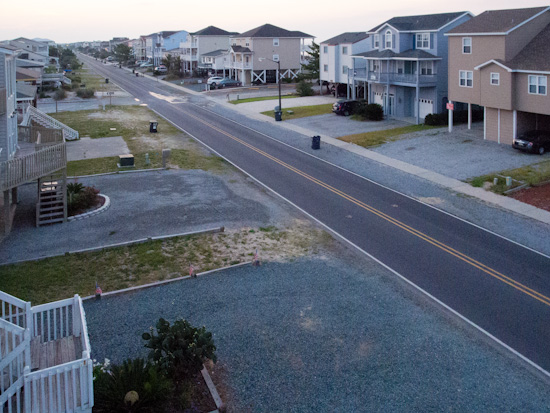
Shooting this on vacation at Ocean Isle, NC.  This is the final after correcting for color, exposure, and perspective.
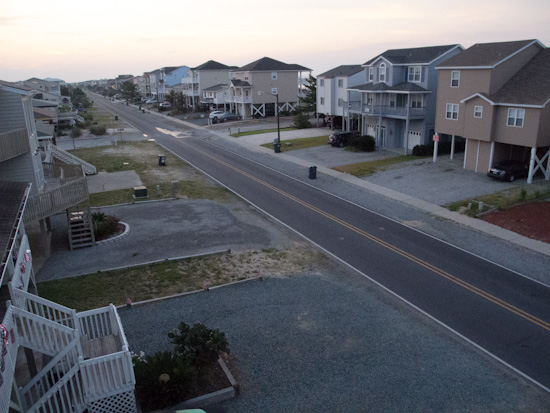
While on vacation I shot this image off our balcony. Well it didn't look like this when I shot it.  It looked like this out of the camera see Figure 2.

Can you see how the buildings are not straight and level as in the top photo?  (Figure 2)
Here are the steps I took

In Develop Module of Lightroom 4.1 I went down the to Lens Correction and clicked on Manual Tab. Then I adjusted the Vertical and Rotated the image.

After getting the buildings perspective correct by using the grid to help me, I then click on the Profile tab. I check the box and this is really cool. Each camera lens has some distortion and using the database built into Lightroom 4.1 it corrects for barrel distortion, chromatic aberration and other things inherently distorted with my Nikon P7000.

Now I crop
As you can see the photo now has some black areas that were not in the photo due to correcting perspective. I just select ⌘R (for cropping) and also lock the size of the image to the original and crop.

Now the photo needs some changes in contrast, exposure, color and more which I correct using the Basic menu in the Develop Module.


I often will choose the Auto setting in Tone to see what it gives me. Sometimes I like it and other times I will ⌘Z (undo) and start over. Sometimes I will just tweak the photo after using Auto.

Try correcting some of your photos using this technique.