Showing posts with label final cut pro X. Show all posts

Monday, December 02, 2013

Two Final Cut Pro X tips for cleaning up your files

Tip One: Consolidating Files

If you create a new package using Final Cut Pro X it is quite possible for you to have your files all over the place. I have done this more than once due to being under a deadline to get the work out the door.

Here is a little tip that can help you later then find the files in one place.

In the Project Library view mode, just put your mouse over the project you want to consolidate. Right click and you will get a similar screen that I have up above.

Select "Consolidate Project Media" as your choice.

If they are already in the same place then you will not be able to go further, but it is possible to have your media imported into another events folder and your project in a different project folder.

The advantage of consolidating is saving the file for you to come back later and make edits.

Tip Two: Organization of Files

Go and buy Event Manager X.

Final Cut Pro X will run better when one one project and event is open at a time. This will give you the best speed and performance out of the program.

Event Manager X will see all the events and projects you have in the file folders of Final Cut Pro X. By checking and unchecking your "Events" and "Projects" within Event Manager X it will then move all those files unchecked into "Hidden Folders" that you can see easily through the program.


All you do is check on the "Events" and "Projects" that you want to open and then click on the "Move Events and Projects" and it will move everything for you. I keep the "Re-open Final Cut Pro X" always checked so that when I click it opens Final Cut Pro X with just what I need open.

Bonus Tip

Keep all your Events and Projects on an external hard drive. Your computer needs extra space on the hard drive to run Final Cut Pro X. Keep at least 20% free space on your system drive.

Those tips save me loads of time and help keep my projects all organized.


Thursday, June 13, 2013

For Video Editing: Combine Final Cut Pro X and Event Manager X


First things first

I am using Final Cut Pro X version 10.0.8 when working with video, which you get through the App store on your mac.  I love the software because you can work in real time and not wait for rendering.  That works in the background.

No matter what video editing software you use I highly recommend maxing out the RAM on your computer. I have 16 gigs of RAM on my Macbook Pro 15".  If I had a desktop I would have even more RAM.

You need a fair amount of free space on your hard drive as well. This is why I recommend running the projects off an external drive. The program is on the main drive, but the clips and video are on my external drive.

I recommend 20% or more free space on your main drive. As you fill up the external, its performance will also slow and this is why my next recommendation will improve your experience with Final Cut Pro X.

Second

By default Final Cut Pro X will show you all  Events and Projects on all mounted storage devices. You are in essence loading all your projects on all your drives every time you open Final Cut Pro X.

Event Manager X gives you control over your Events and Projects so you can manage what you want to be visible in Final Cut Pro X’s Event Library and Project Library. So, you could have multiple external drives with various projects on them and Event Manager lets you decide what is visible.


Instead of launching Final Cut you launch Event Manager X. As you can see in the screen capture above those with a check are what will show up. Just uncheck and it doesn't show up in Final Cut Pro.


What the program is doing in the background is moving your "Events" and "Projects" from their normal folders into "Hidden" folders.  See the example above.

Now lets say you have a few projects in the works. You finish one and send it for approval to the client. While you wait on their feedback and changes you can then close Final Cut Pro open Event Manager and uncheck that project and event for now. Then just check the event and project you want to work on next. As long as you have that "Re-open Final Cut Pro X" at the bottom, when you click on the button to move the events and projects it will launch Final Cut after it moves everything and then you only see what you are working on in Final Cut Pro.

The reason for using Event Manager X is not to make things look neat in Final Cut Pro X, it is to improve the performance of Final Cut Pro X.

Thursday, June 28, 2012

Multimedia coverage of a middle school service project


I drove up to Chattanooga, Tennessee yesterday to cover Roswell Presbyterian's Middle School Youth Group on their summer mission trip.  They partnered with SonServents on their Work Projects that also partnered with Widows Harvest Ministry to include: building wheelchair ramps and landings, scraping and painting houses, putting new roofs on homes, or landscaping and yard work.

Technical difficulties

Two lighting problems are: 1) under porch in middle of the day the youth were in some major shadows and 2) when they are painting the house they are facing the house and are always majorly back lit. While the house maybe white and act as a reflector, it is still a major light fall off. (photo by: Knolan Benfield)
 My solution for this problem was to put two hot shoe flashes up on light stands to light under the porch and even out the light.

There is a Nikon SB-900 on the far left on a light stand with the PocketWizard TT5 to control the TTL output of the light. On the far right is a Nikon SB-800 on light stand using the same setup for TTL. I have on my Nikon D4 the PocketWizard Mini TT1 and AC3 to trigger and control the output of the flashes.  They output is set to 0.
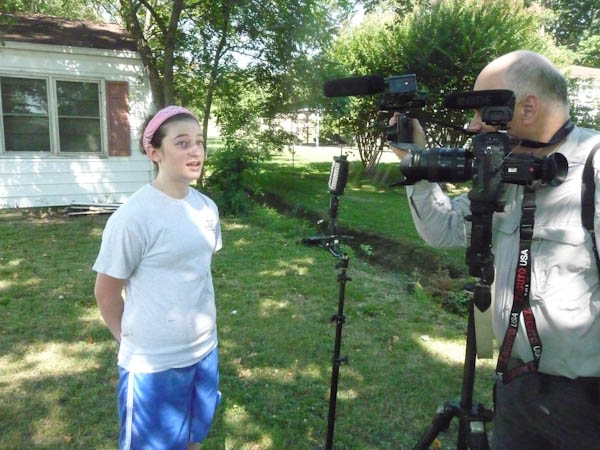
This is my daughter being interviewed by me for the project. (photo by: Knolan Benfield)

You can see the two camera setup here for the video interview. (Photo by: Knolan Benfield)
Video setup

I have a Nikon D4 with 28-300mm lens as the primary camera. I have the Zacuto’s Optical Viewfinder on the back of the camera to help with focusing. The microphone on the D4 is the Rode Video Pro. My second camera is the Nikon P7000 and I have the Rode Video microphone on it.

To help with lighting I have the LitePanel Micro Pro that helps with the shadows. The house behind her is in the sun and she is in the shade of the trees.  The light helps fill her face and by having her in the shade she is able to talk without squinting.

Editing

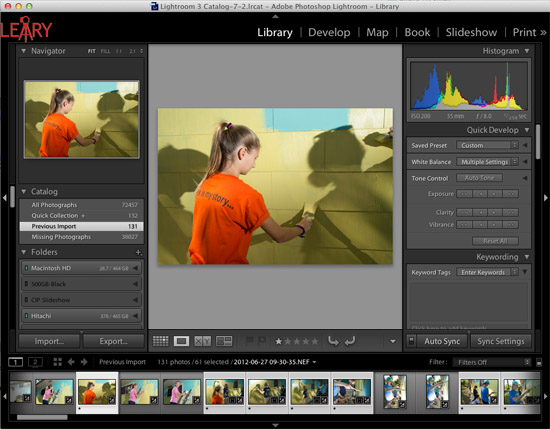
All the photos are edited using Adobe Lightroom 4.  I love this software because I can easily edit all the photos from a similar situation together.


For video editing I used Final Cut Pro X. I enjoy the simplicity of this software to help do things like synchronizing two cameras. I don't have to convert the files from the different cameras when I import them.


I really enjoy combining the still photos with the video interviews. I think the stills help the audience have a visual pause to absorb a moment, whereas a video blows right through these moments too quickly.

Start to finish on this project

Got in our van at 7:30 a.m. and drove up to Chattanooga, Tennessee.  Was at the first location by 9:15 a.m.

We wrapped up shooting all three locations by 12:30 p.m.  Drove back to Roswell and stopped by a Barbeque place for lunch. Was home by 3:30 p.m.

Finished editing all the still photos by 5:00 p.m. and finished the combined project by 11:00 p.m.

Took a dinner break for about an hour.

I had Final Cut to crash and lost about an hour of time.

There you have a quick one day multimedia project.